In this QuickBooks training I’ll be using QuickBooks Premier (Desktop) to show you how to look at your accounts receivable aging report and your customer balance summary. This will let you see who owes you money and how much they owe you.
Quick Instructions:
- A/R Aging Summary Report: In the top menu click Reports -> Customers & Receivables -> A/R Aging Summary
- A/R Aging Detail: In the top menu click Reports -> Customers & Receivables -> A/R Aging Detail
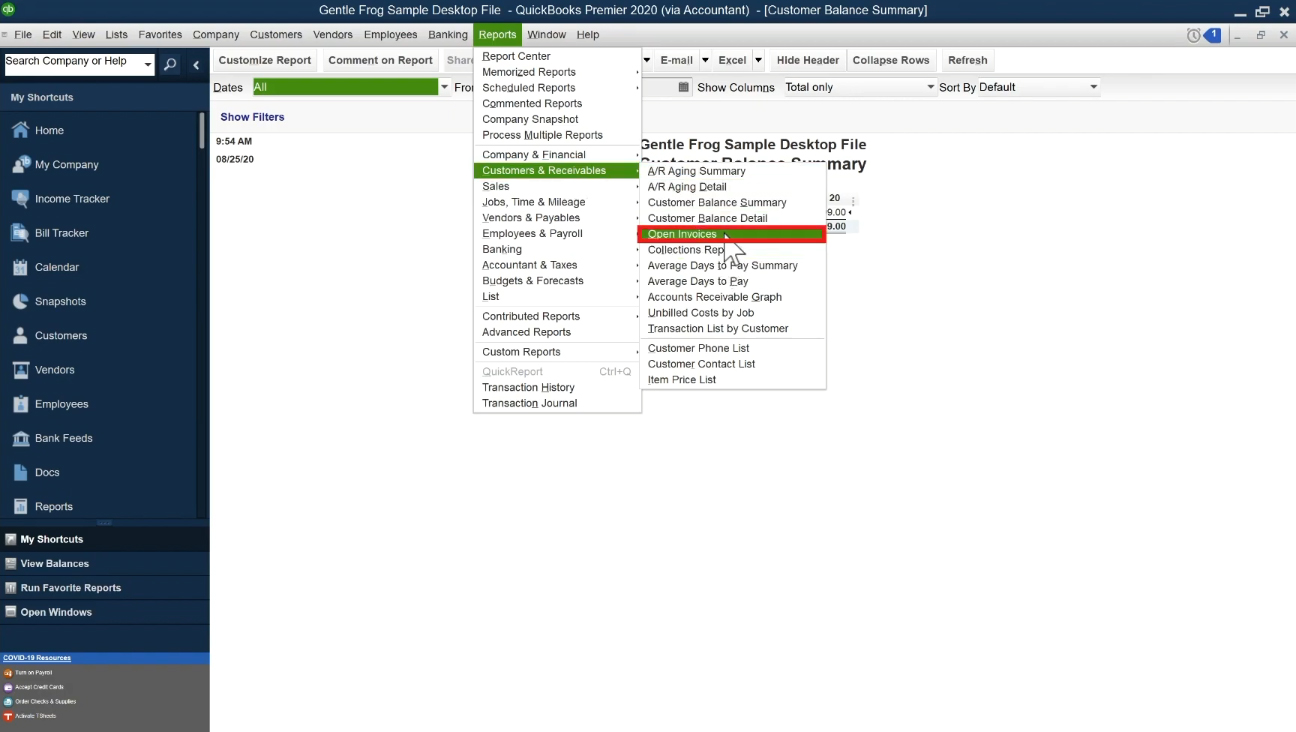
- Open Invoices Report: In the top menu click Reports -> Customers & Receivables -> Open Invoices
Keep reading for full instructions with screenshots.
To get the aging summary from the top menu click Reports -> Customers & Receivables -> A/R Aging Summary.
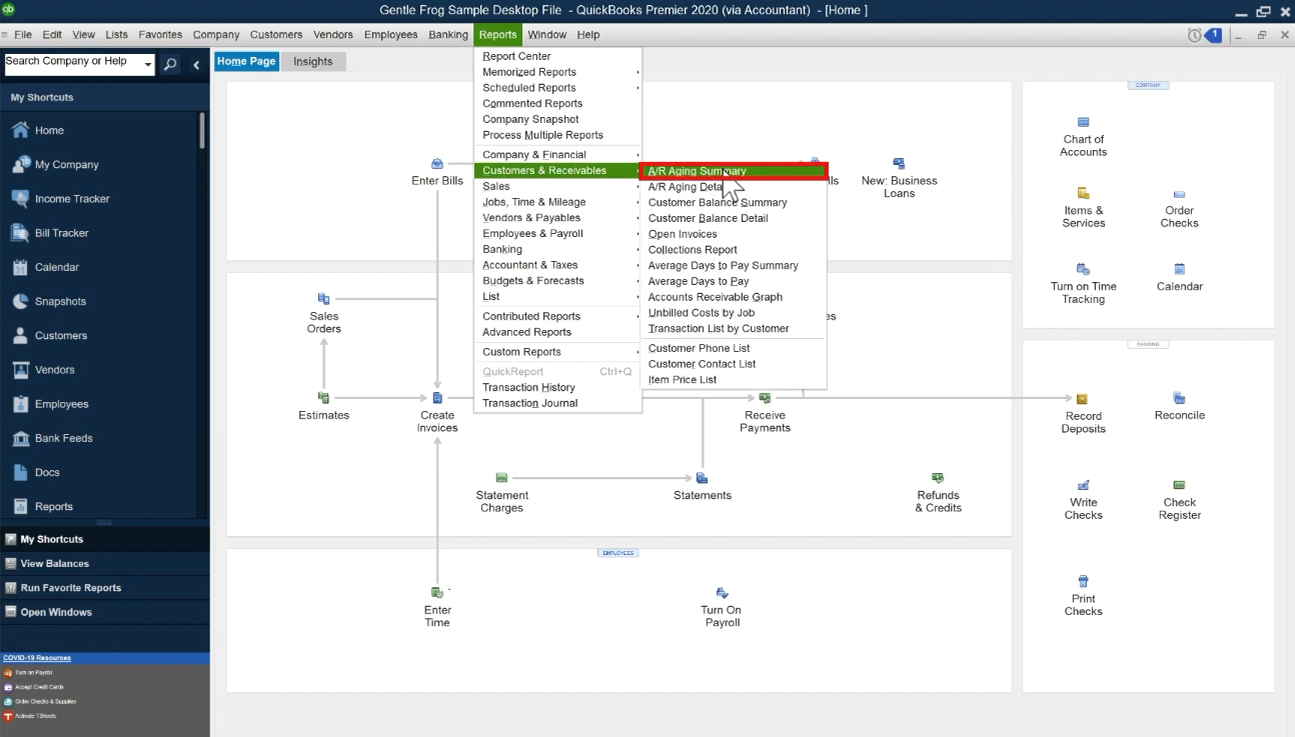
The A/R Aging Summary report tells you how much your customers owe you. As well as how much money is past due versus not due yet. The report doesn’t tell you what was sold or how many invoices are due.
In my example report, I have one customer who owes $999 which is not yet due. $800 that is between 1-30 days past due. For a total of $1799.00 owed.
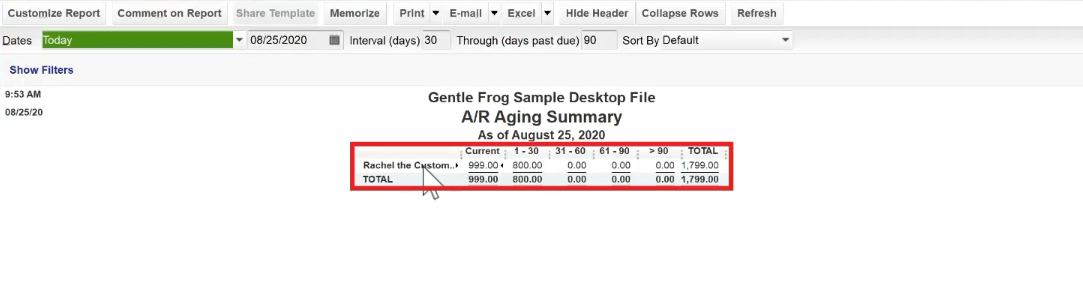
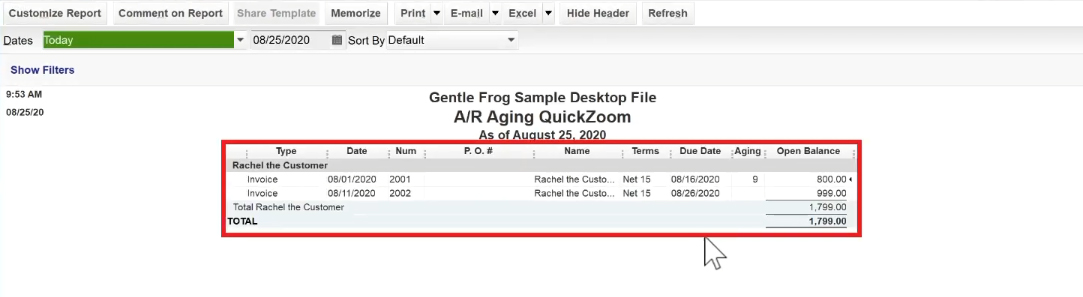
To get additional information you can click on the total amount ($1799.00 in my example). This will show you a list of the open invoices.
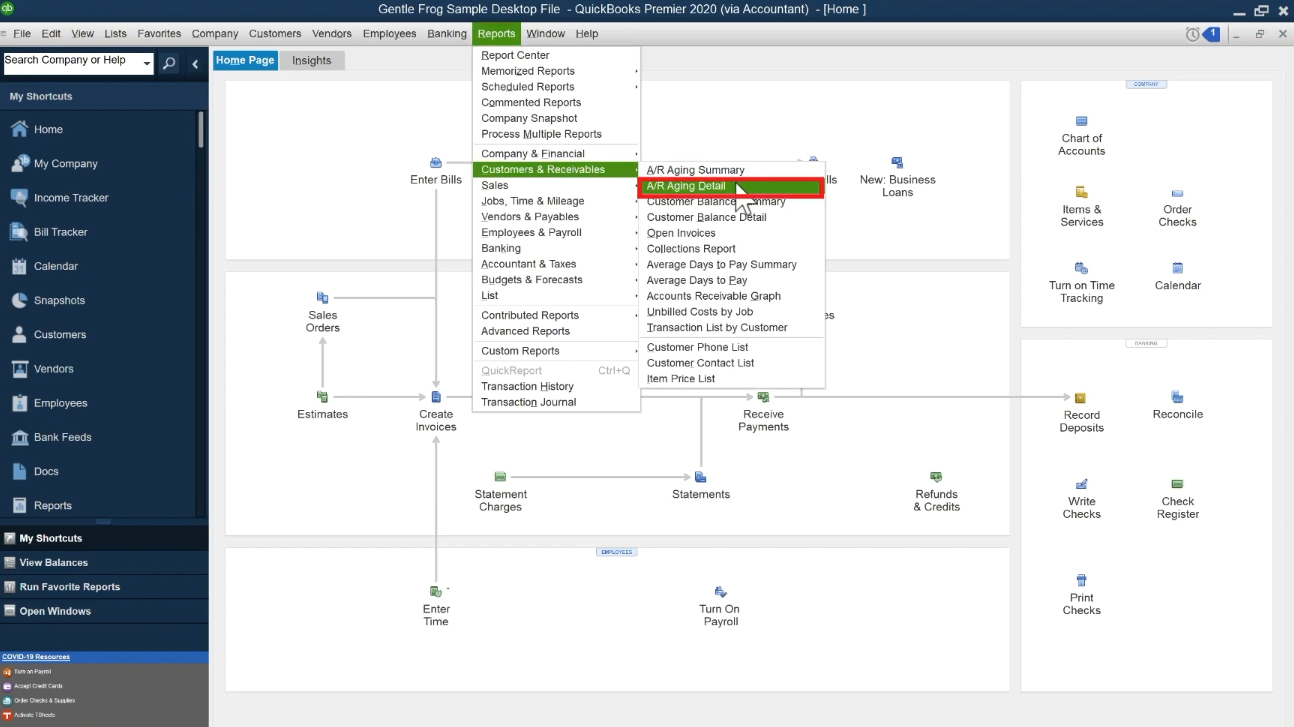
Another report you can use is the A/R Aging Detail. To get there, in the main menu click Reports -> Customers & Receivables -> A/R Aging Detail.
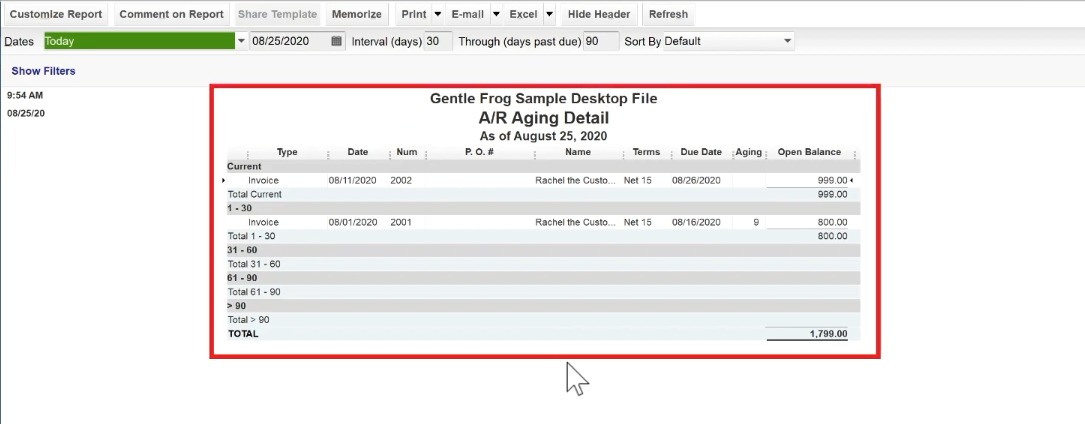
This report is like the last two reports we looked out combined. It shows you each invoice and whether it’s current or past due.
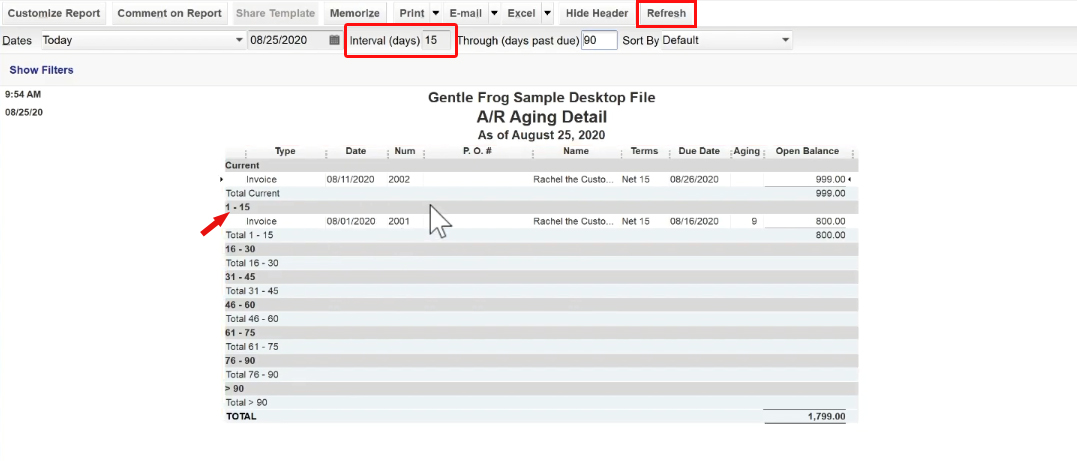
You can change the intervals that it shows you, currently 30 days. At the top of the report, you’ll see “Interval (days).” If you change this number and click the Refresh button your report will update accordingly.
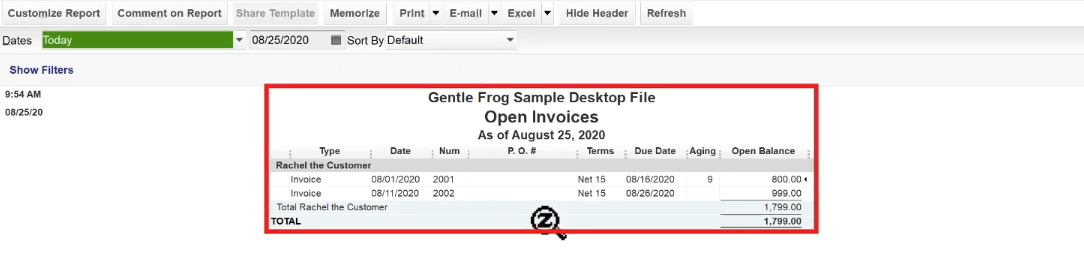
You can also use the Open Invoices report. You can get to it from the top menu by clicking Reports -> Customers & Receivables -> Open Invoices.
This report is just another way to view your open invoices. This one is a little different as it shows the Terms and the Due Date.
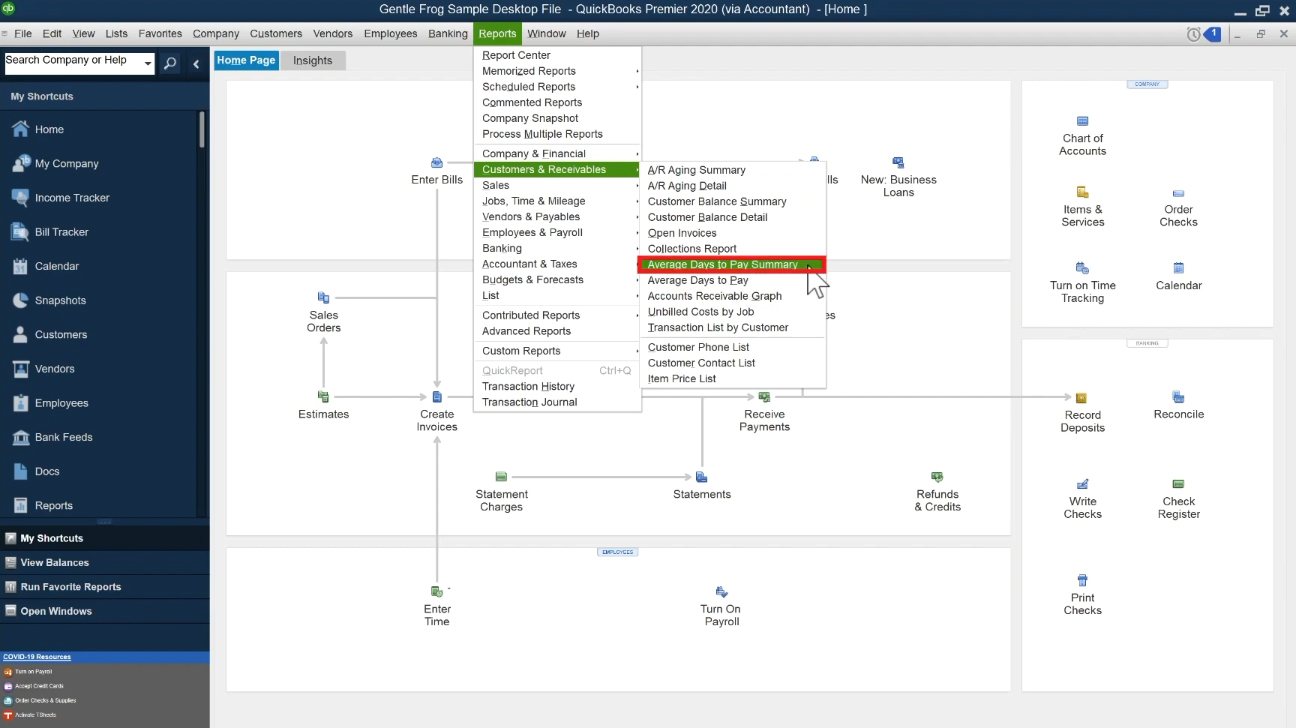
Another report that may be of interest is the Average Days to Pay Summary. To get there from the main menu click Reports -> Customers & Receivables -> Average Days to Pay Summary.
This is a simple report that shows you, on average, how long does it take customers to pay you.
My example customer takes an average of 31 days to pay.
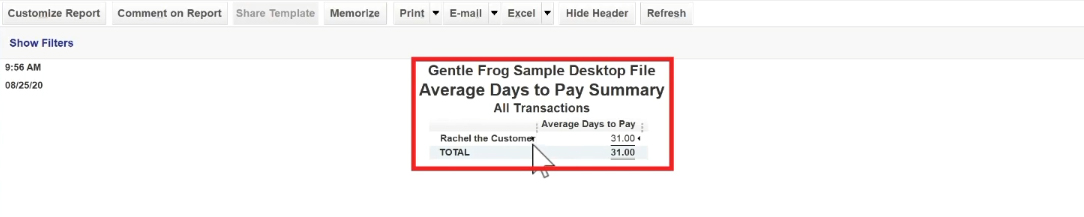
This report is helpful if you think a customer may be late in paying. You can see how long they usually take to pay and if it’s been longer than their average you may want to reach out to them.
I hope this tutorial was helpful for you so you can see who owes you and how much they owe you. This isn’t the only way to find this information in QuickBooks. This is an introduction to show you some of the quickest and easiest way to find it.
☕ If you found this helpful you can say “thanks” by buying me a coffee…
https://www.buymeacoffee.com/gentlefrog
If you’d like to watch me walk through this process check out the video below: